How to Configure a Double NAT Router Setup Without Dropping Speeds
Experiencing a double NAT issue on your network? Learn how to connect two routers seamlessly without sacrificing internet speed or stability.
Network Architecture Lead
Contributor & Technical Writer
Understanding the Double NAT Problem
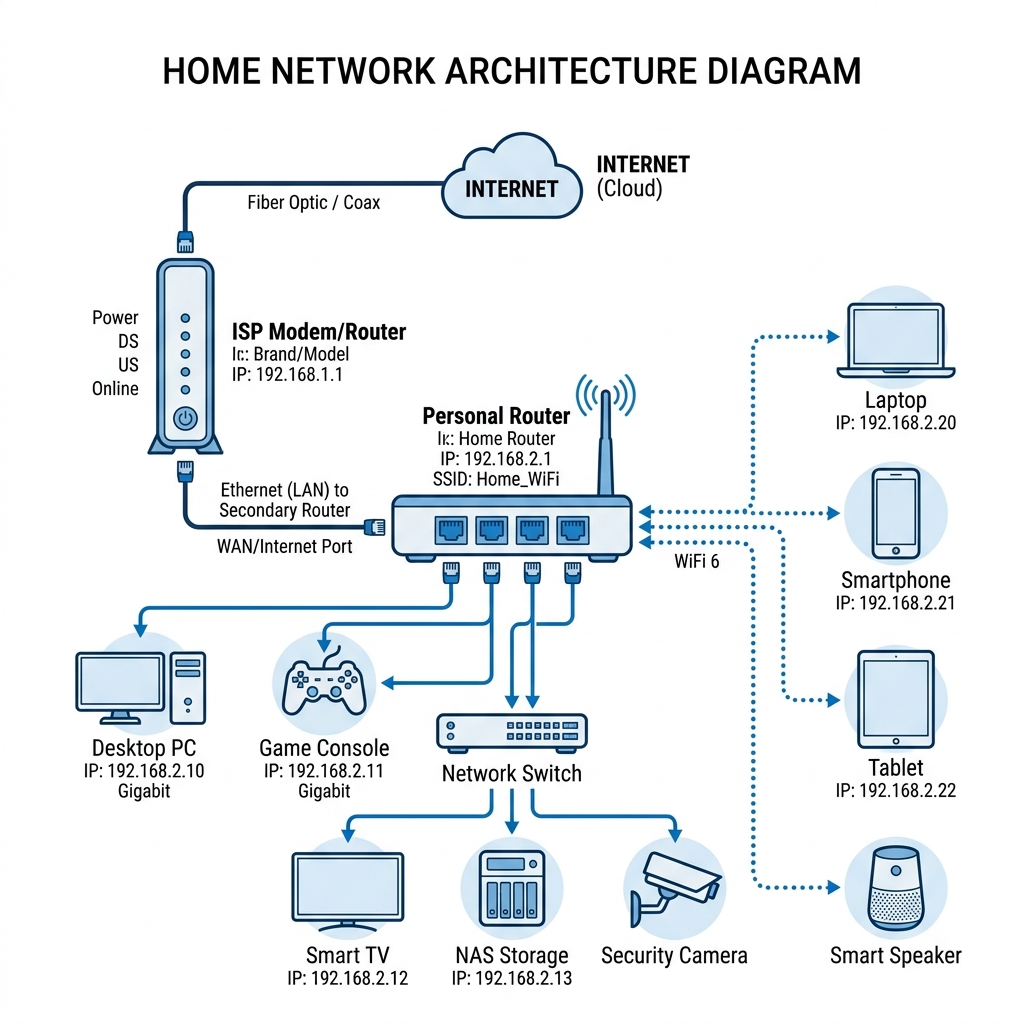
A Double NAT (Network Address Translation) scenario occurs when you connect a secondary personal router to an ISP-provided modem/router combo, resulting in two separate private networks inside your home. While your devices will still connect to the internet, a Double NAT creates a barrier for online gaming lobbies, port forwarding, smart home synchronization, and remote office VPN connections because data packets get lost translating between the two separate networks.
Why Double NAT Restricts Your Connection
When you have two routers performing NAT, your computer's internal traffic has to pass through two gateways before reaching the public internet. In addition, this second layer of translating IP packets (e.g., from 192.168.2.x to 192.168.1.x, and then to your public IP) increases routing latency, blocks inbound connections automatically, and causes "Strict NAT" or "NAT Type 3" errors on consoles like PlayStation and Xbox. Meanwhile, it can also cause VPN connections to drop frequently due to translation timeouts. Consequently, managing double NAT is critical for achieving optimal speeds.
The Two Methods to Resolve Double NAT Without Throttling Speeds
You can solve this network conflict without buying expensive hardware or losing speed by implementing one of the following two standard configurations:
Method 1: Enabling Bridge Mode (IP Passthrough) on the ISP Modem (Recommended)
The most elegant solution is to disable the routing features of your ISP modem/router combo entirely. Specifically, by logging into the ISP gateway administrative panel and enabling "Bridge Mode" (also called IP Passthrough), the ISP device stops performing NAT. As a result, it passes the raw public IP address directly to the WAN port of your personal router. However, this transforms the ISP device into a simple modem, allowing your premium router to handle all DHCP leases and traffic routing seamlessly.
Method 2: Configuring AP (Access Point) Mode on the Secondary Router
If your ISP modem cannot be bridged (which is common with certain fiber or IPTV setups), you can instead disable the routing features of your personal secondary router. Additionally, by changing its operating mode from "Router Mode" to "Access Point (AP) Mode," the secondary router disables its internal DHCP server and NAT engine. Furthermore, it simply acts as a wireless switch, letting the ISP modem assign IP addresses to all your smart electronics, unifying your entire home under a single network subnet.
Frequently Asked Questions (FAQ)
Q: Does Bridge Mode reduce my Wi-Fi range?
A: Bridge Mode disables the Wi-Fi broadcast on the ISP modem itself. You should turn off the ISP Wi-Fi and rely entirely on the stronger Wi-Fi signal of your personal router or mesh system for coverage.
Q: Can I still plug devices into the ISP modem when in Bridge Mode?
A: No. Once bridged, only one Ethernet port on the ISP modem remains active, which must be connected to the WAN port of your personal router. Any other devices must be plugged directly into the personal router.
Q: Will AP Mode disable my router's premium features?
A: Yes. In AP mode, features like parental controls, QoS traffic prioritization, and security firewalls are handled by the main ISP modem, as your personal router is only behaving as a wireless bridge.
To learn more about related technologies, check out our guide on understanding IP addresses and DNS. Therefore, for additional industry resources and guidelines, visit the official Linksys Support. Consequently, managing double NAT is critical for achieving optimal speeds.
Conclusion
Fixing a Double NAT is straightforward once you decide which router should control your network's traffic. Consequently, whether you choose to bridge your ISP modem or convert your personal router to an Access Point, establishing a single NAT layer will immediately resolve connectivity dropouts and optimize throughput for a faster, lag-free smart home.
Share this guide